Field note · 11 October 2026
“I change a setting and it goes back.”
The short answer, in two parts
Settings. RetroArch stores configuration in four layers — global, per-core, per-content-directory and per-game. The layers load on top of each other, and once a core, directory or game override exists, RetroArch refuses to save the global config from inside that game. That is upstream behavior, not a bug. Save to the layer you actually meant, from the menu item that writes that layer.
Turbo. An auto-firing button is a turbo binding, and turbo exists in two independent layers in RetroArch plus a third layer inside some cores — and input bindings live in their own remap files rather than in the normal config at all. Clearing one place does not clear the others.
This is written for the R36S and its ArkOS-family firmware, but the RetroArch half applies to any handheld running RetroArch. A terminology note for anyone arriving from a Chinese-language guide: what those guides call the "all-in-one emulator" is RetroArch.
1. What goes wrong, and how it looks
The first complaint is always the same shape: change a setting, exit the game, come back, and it is the way it was. People spend a whole morning on it and still cannot work out how settings are meant to be saved, because the menu looks like it is saving and it is not.
The second is a button that fires by itself. You set up a turbo key once, and now every game auto-fires; or the A button behaves normally in the frontend and auto-fires inside RetroArch on GBA. In both cases you go into Controls, find no turbo assigned, and are left with nothing to act on.
That last case contains the whole puzzle. You checked Controls, found nothing, and the button still fires. It is not in Controls. It is in two other places, and one of them is not part of the configuration system at all.
2. RetroArch settings are four layers, not one screen
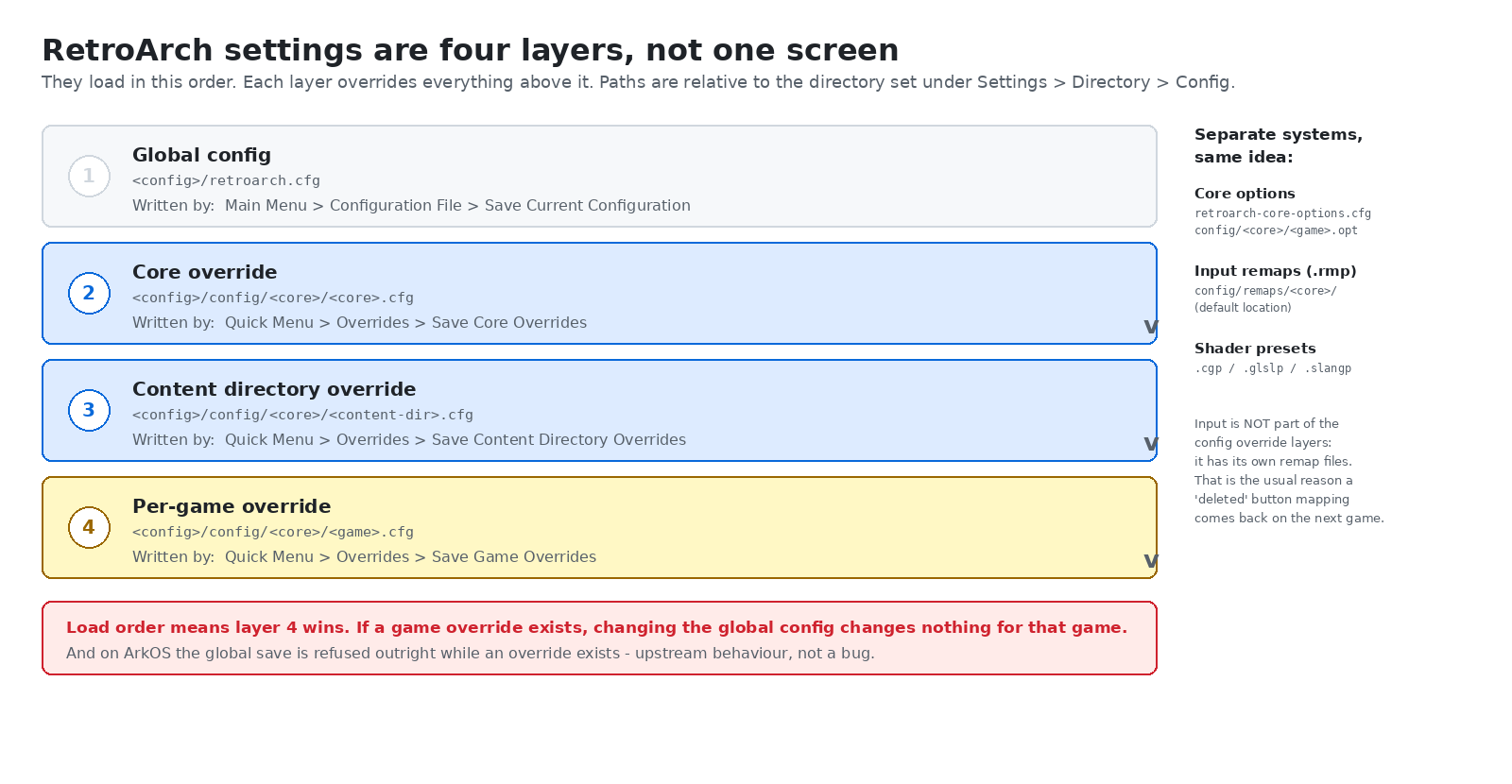
Global is retroarch.cfg, written by Main Menu, then Configuration File, then Save Current Configuration. Core override is config/<core>/<core>.cfg, written from Quick Menu, then Overrides, then Save Core Overrides. Content directory override is config/<core>/<content-dir>.cfg, written from the same Overrides menu. Per-game override is config/<core>/<game>.cfg, again from Overrides.
The official libretro documentation states the loading order as game settings, then content directory settings, then core settings, then the defaults from retroarch.cfg. The directory is the one you set under Settings, then Directory, then Config.
Three further systems sit alongside the config layers rather than inside them. Core options live in retroarch-core-options.cfg globally, plus a per-game .opt file inside the core's config folder; game-specific options only load automatically if "Load Content Specific Core Options Automatically" is on. Input remaps are .rmp files, by default under config/remaps/<core>/ — the documentation is explicit that input settings are handled separately by the remap system. Shader presets have their own files again.
3. The rule nobody tells you
The ArkOS project documented this as a frequently asked question, and the answer is unusually direct. The question: when I am in a game and make a change in the RetroArch menu, why does saving the current configuration fail? The answer: the most likely cause is that you have saved a core, content or game override for the core or game you currently have loaded. Once you have those, you will no longer be able to save a global configuration from that core or game. This is by design from libretro. What you have to do is go to the RetroArch entry in the frontend menu, with no game running, make your global changes there and save.
The libretro documentation says the same thing from the other direction: once you have created an override, any future changes need to be saved through the Quick Menu.
So the person who changes a setting, exits, and finds it back the way it was is usually not failing to save. They are succeeding at loading an override that already says something else.
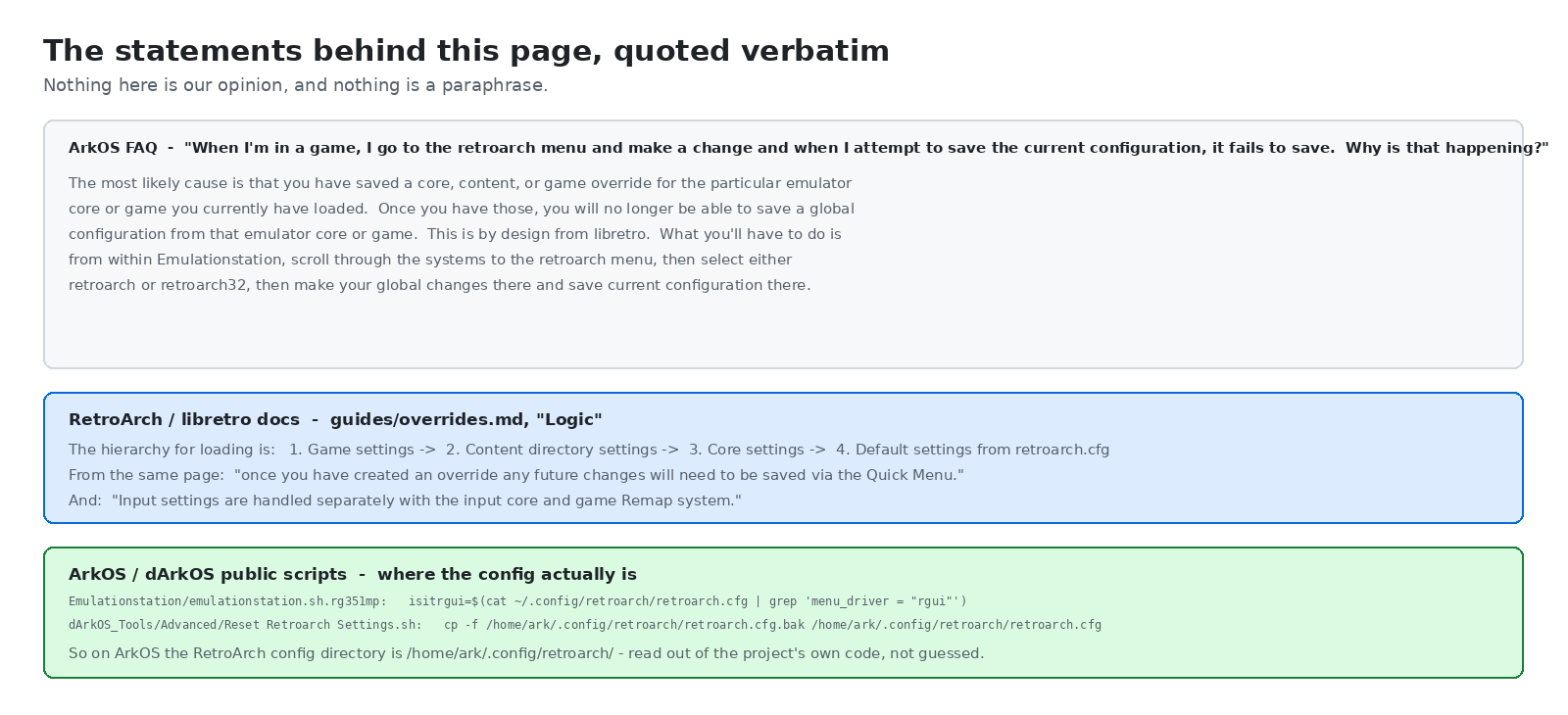
On an ArkOS-class build the config directory is /home/ark/.config/retroarch/ — and that is not a guess. Two lines from the public ArkOS and dArkOS source read that path directly: one launcher script greps retroarch.cfg there for the menu driver setting, and the reset tool copies a backup file over the live config in the same folder.
⚠️ Not verified on hardware: we read those lines out of the projects' repositories; we have not run them against a live unit. Your build may differ, and the authoritative answer for any individual device is what Settings, then Directory, then Config reports.
4. How to fix a setting that will not stick
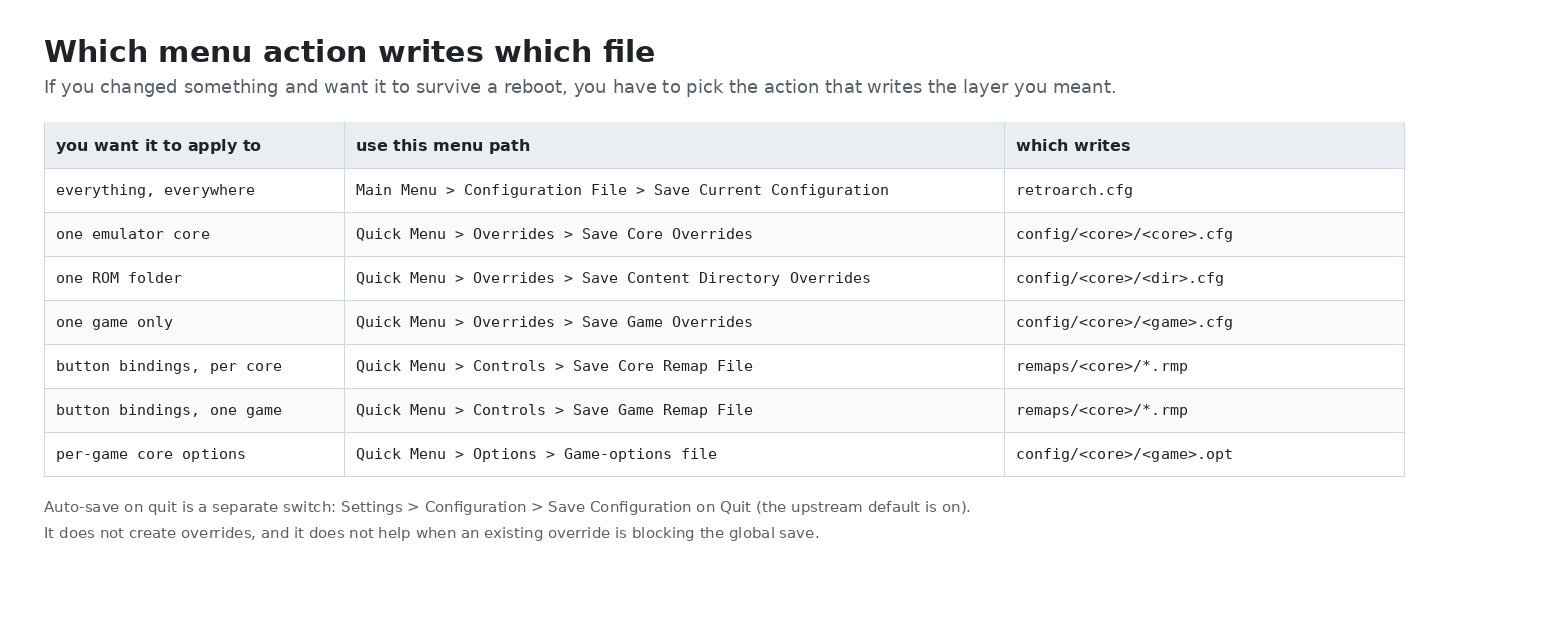
Decide which layer you want, before you touch anything. Ask yourself whether you want this everywhere, or only for this emulator, this folder, or this one game. Then use the matching row.
If Save Current Configuration seems to do nothing, that is the case documented above. In order: confirm an override is actually there, by opening Quick Menu, then Overrides, while the game is running — if the entries read Delete Core Override or Delete Game Override rather than Save, an override exists. Either delete the override and then save globally, or make the change where the override lives by re-saving it with the new value. If you genuinely want a global change and the override should stay for other reasons, quit to the frontend and open the RetroArch entry in the frontend menu rather than RetroArch from inside a game. There is no content loaded there, so no override is in force and the global save goes through.
If the setting survives a game exit but dies at the next power-off, check Settings, then Configuration, then Save Configuration on Quit. In upstream RetroArch this defaults to on, which is why most people never hit this. If it is off, nothing is written on exit and every change dies with the process. It is also worth confirming the file is writable and not being regenerated: the ArkOS launcher scripts do edit retroarch.cfg — one of them comments out the exit-emulator key binding when you choose to boot straight into RetroArch instead of the frontend, and it also edits the menu driver and menu color theme in the same file. On this firmware family, retroarch.cfg is not exclusively yours.
The reset tool does less than you think. ArkOS ships an Advanced, then Reset Retroarch Settings option, and its own message says it restores the default settings and will revert any global changes to the values from the most recent update. The entire body of the script is one line: copy retroarch.cfg.bak over retroarch.cfg. It restores that one file and nothing else. Your overrides and your remaps are untouched by it. So "I reset RetroArch and it still won't save my global settings" has an obvious explanation: the override that blocks the global save is still sitting there. Delete it explicitly.
⚠️ Not verified on hardware: the reset behavior is a reading of the script in the public repository, not a recorded run on a device. The launcher's edits to the config file are likewise read from source rather than reproduced.
5. Turbo: the button that will not stop
Turbo means rapid fire: hold the key down and the button fires repeatedly. It is deliberately not in the Controls screen where you would go looking for it. There are four places to check, and they are independent.
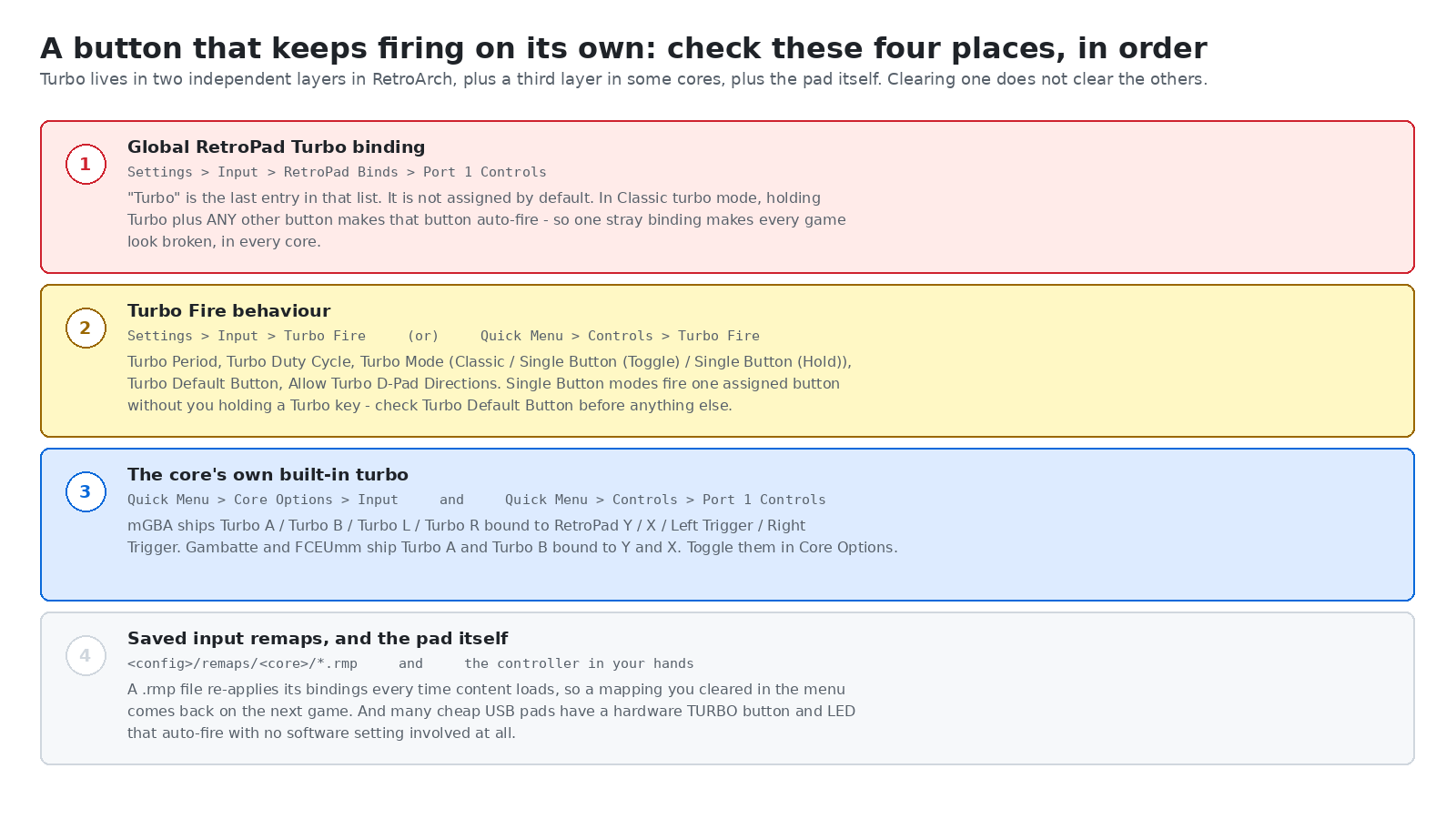
One: the global RetroPad turbo binding, under Settings, Input, RetroPad Binds, Port 1 Controls. Per the official documentation, turbo is found at the bottom of the list and is not assigned by default. Once assigned, in Classic turbo mode, holding the turbo button at the same time as any other button causes that button to turbo. That single sentence explains one stray binding making every game on the device fire automatically.
Two: the Turbo Fire behavior options, under Settings, Input, Turbo Fire — or, while a game is running, Quick Menu, Controls, Turbo Fire. Five options exist: turbo period, which is how often the input repeats; turbo duty cycle, which is how long each press is held; turbo mode, which is Classic, Single Button Toggle or Single Button Hold; turbo default button, which is the one button the single-button modes act on; and whether turbo is allowed on the D-pad. The two single-button modes fire one assigned button without you holding a turbo key at all. If turbo fires with no turbo key held, you are in a single-button mode and the default button is the thing to clear.
Three: the core's own built-in turbo. Some cores implement turbo themselves, and the RetroPad bindings reflect that. mGBA has Turbo A on Y, Turbo B on X, Turbo L on the left trigger and Turbo R on the right trigger. Gambatte has Turbo A on Y and Turbo B on X. FCEUmm has Turbo A on Y, Turbo B on X and Turbo A+B on the right thumb click. They are switched on or off under Quick Menu, Core Options, Input, and their targets are visible under Quick Menu, Controls, Port 1 Controls. This is the most likely answer to the "A auto-fires in GBA but Controls shows no turbo" case: the auto-firing input is the core's own Turbo A, bound to the RetroPad Y position, and on a handheld whose physical face buttons do not match the RetroPad lettering, that lands on whatever button the launcher maps to Y.
Four: saved remaps, and the pad itself. A remap file under the config directory's remaps folder is re-applied every time content loads, which is exactly why clearing a binding in the menu appears to work for one session and then comes back. Look for .rmp files there and delete or re-save them. And outside the software entirely: many inexpensive USB gamepads have a physical turbo button that latches an LED and auto-fires one button with no software setting involved. If a pad is plugged in, unplug it and retest before you spend an evening in menus.
So the order of operations to turn turbo off is: clear the turbo binding under Port 1 Controls, where an unassigned button shows as three dashes; set the turbo default button to none so the single-button modes have nothing to act on, and check the turbo mode; turn off the core's turbo under Core Options if present; clear or re-save any remap for that core so the first step does not get undone on the next load; and then save, both globally and, if an override exists, at the override level — otherwise you have only fixed today's session.
⚠️ Not verified on hardware: every menu path and option name above is taken from the official RetroArch and libretro documentation; we did not perform this sequence on an R36S for this page. The exact on-screen wording of the unassigned state and of the turbo-off choice varies between RetroArch versions.
6. “Search games”, and the frontend index
Two separate things get called search on these devices, and both of the complaints above are about the second one. RetroArch's own search is a box inside the RetroArch menu for finding an entry in RetroArch's playlists; it is not how you find a ROM on the card and it does not affect the frontend.
The frontend's game list is an index, not a live search. It reads each system's folder, builds a gamelist, and shows you that list. So "search shows only a few games and won't show all of them" is almost always an index or filter problem.
The ArkOS project's own answer to "I added the roms to the folder but the console doesn't find them" is a three-item checklist: the roms must be in a supported extension for that system; press start, go to UI Settings, then visible systems, and make sure to select all; and press start, go to Advanced settings, and be sure that parse gamelists only is off.
Read the second and third items as the index controls. "Visible systems, select all" is the fix for a system list that has been narrowed down, which is precisely the "only shows a few" complaint. "Parse gamelists only" off is the index rebuild switch: with it on, the frontend only reads the existing cached list and does not rescan the folders, so newly copied ROMs never appear; turning it off forces a real scan. That connects directly to our note on games that never show up.
⚠️ Not verified: menu wording differs between frontend builds, so on a non-ArkOS build treat any exact label here as "look for the equivalent entry". A "press X to scan" behavior reported on a different vendor's stock front-end is relayed to us second-hand, not tested by us, and the RetroArch menu path for the internal search box differs between the rgui and xmb menu drivers, which ArkOS has historically switched between.
7. How to verify the change stuck
Do these in order, and stop at the first one that fails — it tells you which layer is fighting you.
Exit the game normally, back to the frontend, then re-enter the same game. If the value reverted here, an override owns it.
Power off fully and boot again, then re-enter the game. If it reverted here but survived the first step, nothing was ever written to disk — check Save Configuration on Quit, and check whether the file is writable.
Load a different game on the same core. If your change followed you there, you saved at core level. If it did not, you saved at game level.
List what is actually on the card. Over SSH — on ArkOS that is Options, then Enable Remote Services, then logging in as user and password both ark — the config directory is the one RetroArch reports under Settings, Directory, Config. List retroarch.cfg with its timestamp, list the core config folder recursively to see every override, list the remaps folder to see every saved input remap, and grep the global config for turbo keys if you are chasing auto-fire.
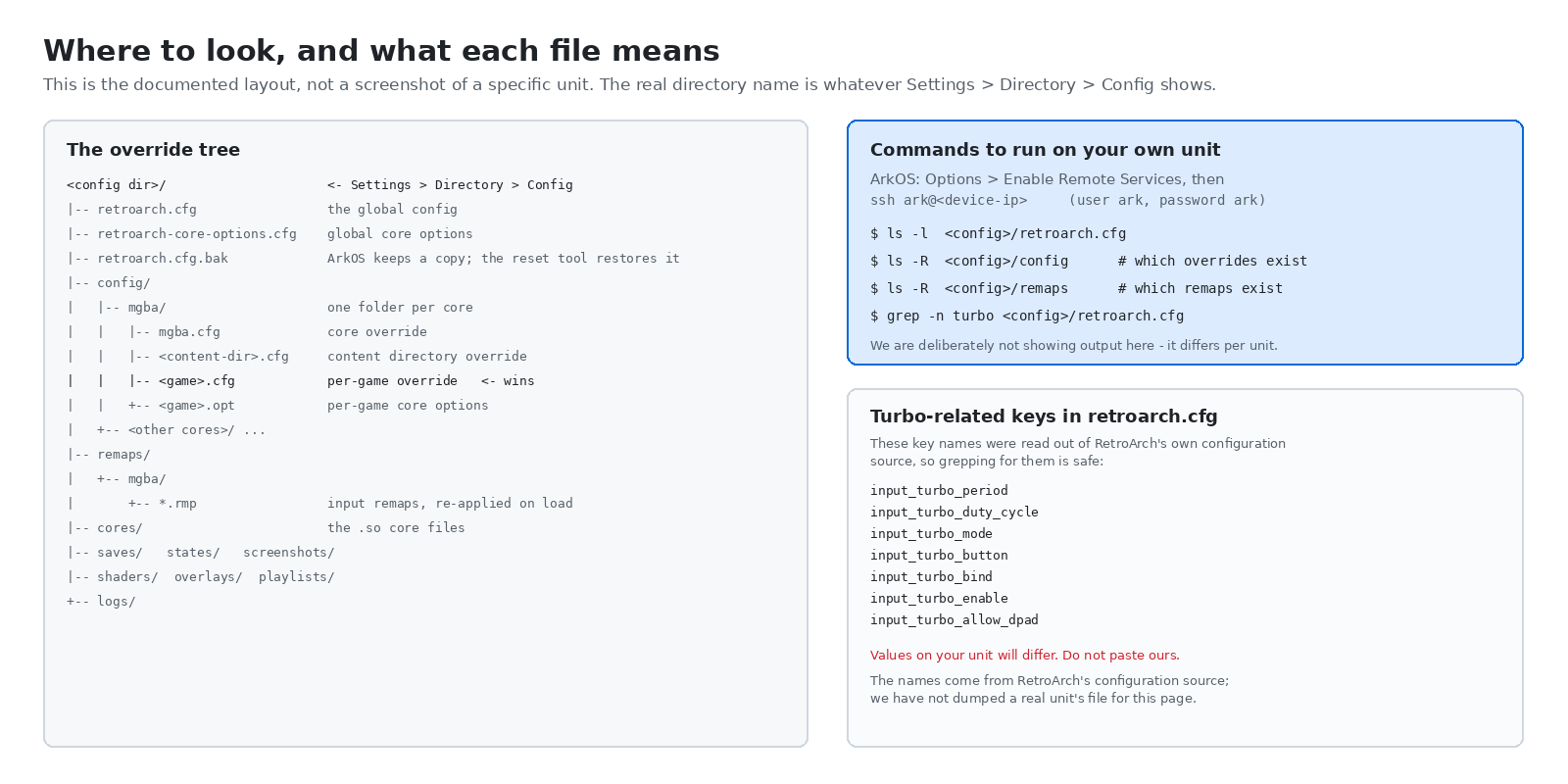
The turbo-related key names — turbo period, duty cycle, mode, default button, bind, enable and allow-D-pad — were read out of RetroArch's own configuration source, so grepping for them is reliable. Reading the timestamps is often enough on its own. If the global config still shows the same modification time you saw before you saved, nothing was written. If a file under the core config folder has today's timestamp, that is the override that is winning.
8. How not to step in it again
One change at a time, then check. Save, exit the game, re-enter it. If you change five things at once you cannot tell which layer swallowed which.
Know that overrides are sticky. Creating one silently disables the global save from that core or game. If you do not have a reason for an override, do not create one.
Prefer the frontend's RetroArch entry for global changes. No content loaded, no override in play, the save goes where you expect.
Remember that input lives elsewhere. Button bindings go in remap files, not in the config layers. If a button is behaving oddly, look at remaps and at the core's own options before anything else.
Do not leave a global turbo binding in place. It is the cheapest way to make every game on the device look broken.
Back up the config directory before you experiment. On ArkOS there is a built-in settings backup option in the launcher menu, and copying the RetroArch config folder to a PC costs nothing and makes everything above reversible.
Understand that "root cause" here is usually "wrong layer", not "broken save". The settings system is working exactly as designed; it is just not designed the way the on-screen menu makes it look.
Questions we get asked
Does RetroArch have one settings file? No. There is one global file plus three override layers, plus separate systems for core options, input remaps and shader presets.
Why does Save Current Configuration do nothing inside a game? Because an override exists for that core, content directory or game. Upstream RetroArch deliberately refuses the global save while an override is in force.
I reset RetroArch to defaults and it still will not save. Why? Because the reset tool restores the global config only. Overrides live in a different folder and survive the reset.
Where is the turbo setting? Not in Controls. The global binding is under RetroPad Binds, last entry. The behavior options are under Turbo Fire. Some cores have their own turbo under Core Options.
Why does only GBA auto-fire, and only in RetroArch? Because mGBA has built-in Turbo A and Turbo B bound to the RetroPad Y and X positions, enabled from the core's own options. Nothing in the frontend knows about it, which is exactly why it appears only in RetroArch.
My new ROMs never appear. What rebuilds the list? The frontend's scan, with "parse gamelists only" turned off, and the visible-systems list set to include everything.
Sources
The override load hierarchy, the config file locations, the statement that input settings are handled by a separate remap system and the note that future changes must be saved through the Quick Menu all come from the libretro documentation on content, folder and core overrides. The menu paths for the global turbo binding and the Turbo Fire options, the five Turbo Fire options, the per-core turbo bindings for mGBA, Gambatte and FCEUmm, and the Save Current Configuration and Save Configuration on Quit paths come from the RetroAchievements turbo-button tutorial. The "it fails to save" answer, the three-point checklist about ROMs not appearing, the remote-services step and the SSH credentials come from the ArkOS FAQ. The config path, the reset script body, the launcher's edits to the config file and the existence of the settings backup option come from the public ArkOS and dArkOS repositories. The turbo key names and the save-on-exit default come from RetroArch's own source. Corrections are welcome, especially from anyone who can confirm the exact menu wording on a current ArkOS build.
Related reading
Games on the card that never show up — the same frontend index, seen from the file side.
Black screen after flashing — what to do when the device will not show a picture at all.
First steps, the shop FAQ, and the bare R36S.